


 – student guide

After logging in, you see the Schedule view, where you find assignments and diaries assigned to you by your teacher. The assignment is a general term in Workseed for student’s activities. The institution can freely define the assignment names according to their practices and terms used in its qualifications and training programs. Widely used terms are for example, an assessment form, a training report, an internship agreement, an assessment book.
Diaries are handy for the frequent reporting. Typical implementation is a learning diary to be filled during the placement. In some qualifications and training programs, students and encouraged to enrich their diaries with photos and video clips. Therefore diaries are easy to use also with mobile devices.
The picture below shows an example where a student has several assignments to complete. Depending on the implementation of the course, it may include one or more assignment. At the top of the view you see a list of recently updated assignments, so you can quickly find the most recently updated ones. At the bottom of the view, you find the assignments grouped by courses.
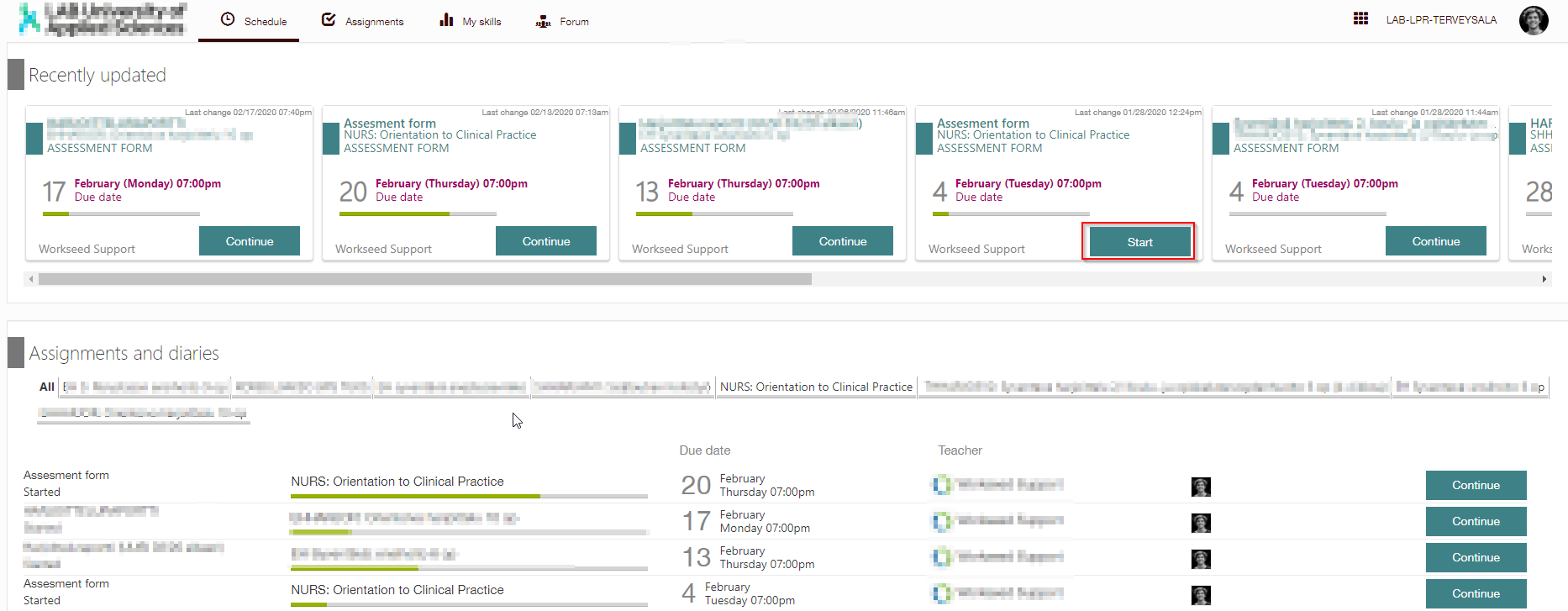
The due date and the responsible Teacher are shown on the assignment card. The due date is the dead line to complete your assignment. However, exceeding the deadline does not block the completion of the assignment so you can finish it late.
Select Start.

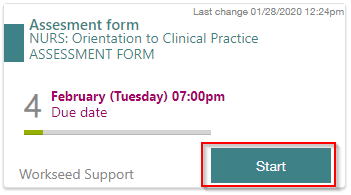
NOTE: If you continue an assignment started earlier, the button is labeled Continue.
A typical Workseed assignment you need to add information about the workplace is an assessment form used during the placement (often named also as an assessment book or training agreement).
In addition to you and your teacher, your workplace supervisor must access to your assessment form for writing your assessment. Your workplace instructor have an access to your assessment form via an email link. Therefore you have to add his or her contact information including the email address.
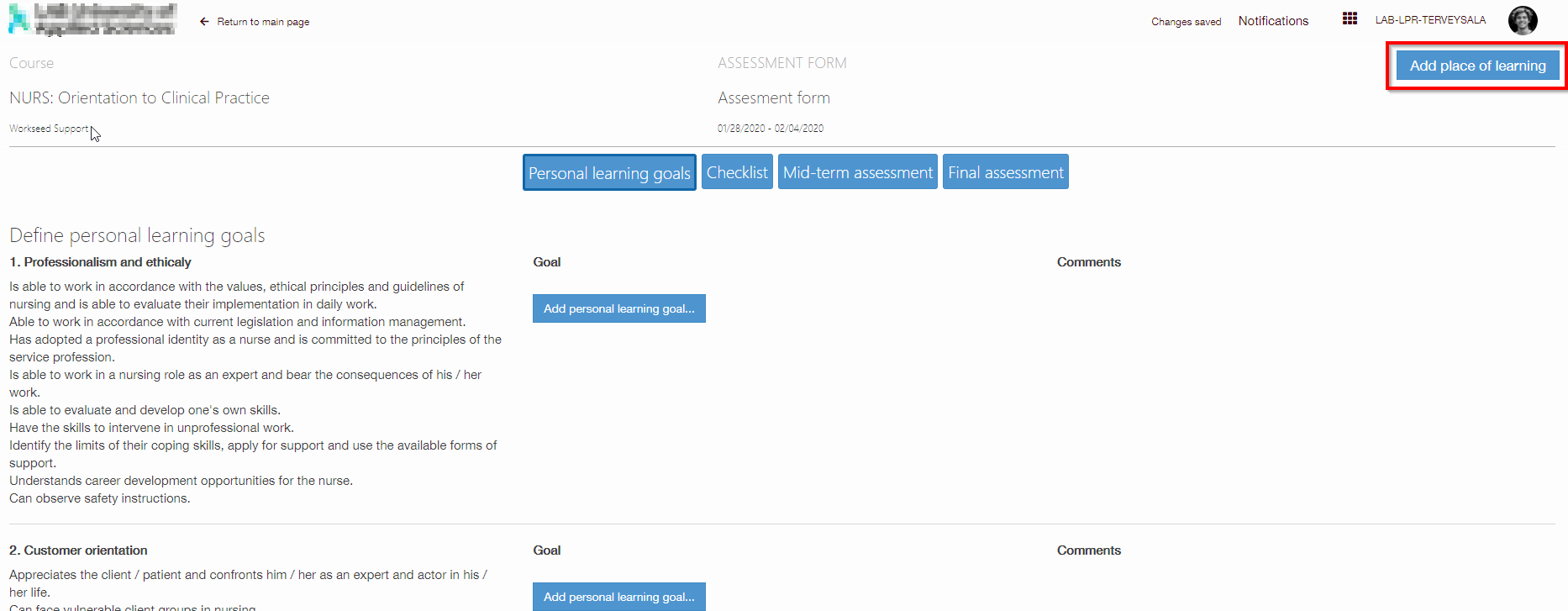
Select Add Place of learning.

Then add Workplace instructor’s name, email address, mobile number and the name of the company, organization or department. Ask further assistance from your teacher if you don’t know all contact information.

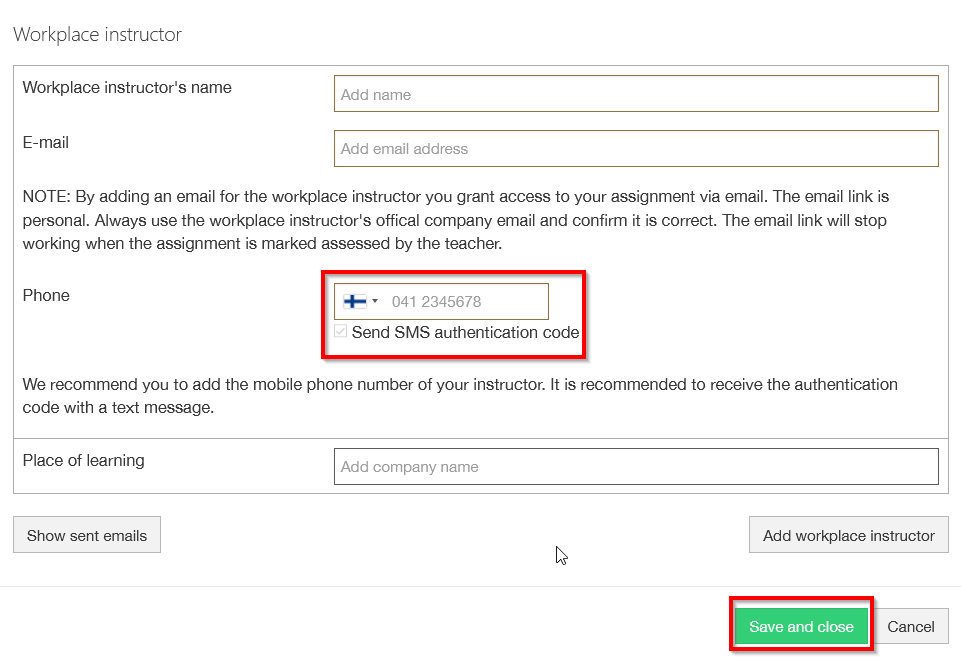
Finally, select Save and Close.
Your workplace instructor will then be automatically notified by email that he or she has been named as your workplace instructor. The email includes also a link to your assignment.
Please make sure your instructor has been notified. If the message is not found, ask your instructor to check junk emails.
1. Using the authentication code
The authentication code is a one-time numeric code sent to your workplace instructor to open your assignment. Authentication codes prevent third parties to access your information. Make sure your workplace instructor can receive text messages with a mobile phone number you add.
If the phone number is not is personal use or for some other reason your instructor cannot receive text messages, do not enable the Send SMS authentication code option. When it is disabled, the code is delivered via email.
2. Adding many workplace instructors
To add many workplace instructors, hit Add workplace instructor. Each of them receives their personal email link to your assignment so they can make the assessment together.
3. Other settings
The Teacher selection allows you to change the responsible teacher. Do that only if you have permission to do so. You can also update the Start Time according to the instructions you received from your teacher, for example to match the exact start time of your placement.
The assignment can include one or more task pages. On the task page you find for example questions, tasks and check list items. Very often you need to attach documents for example photos or video clips.
Th following screenshot illustrates a checklist page on an assessment form, where the student acknowledges that the required tasks are completed.

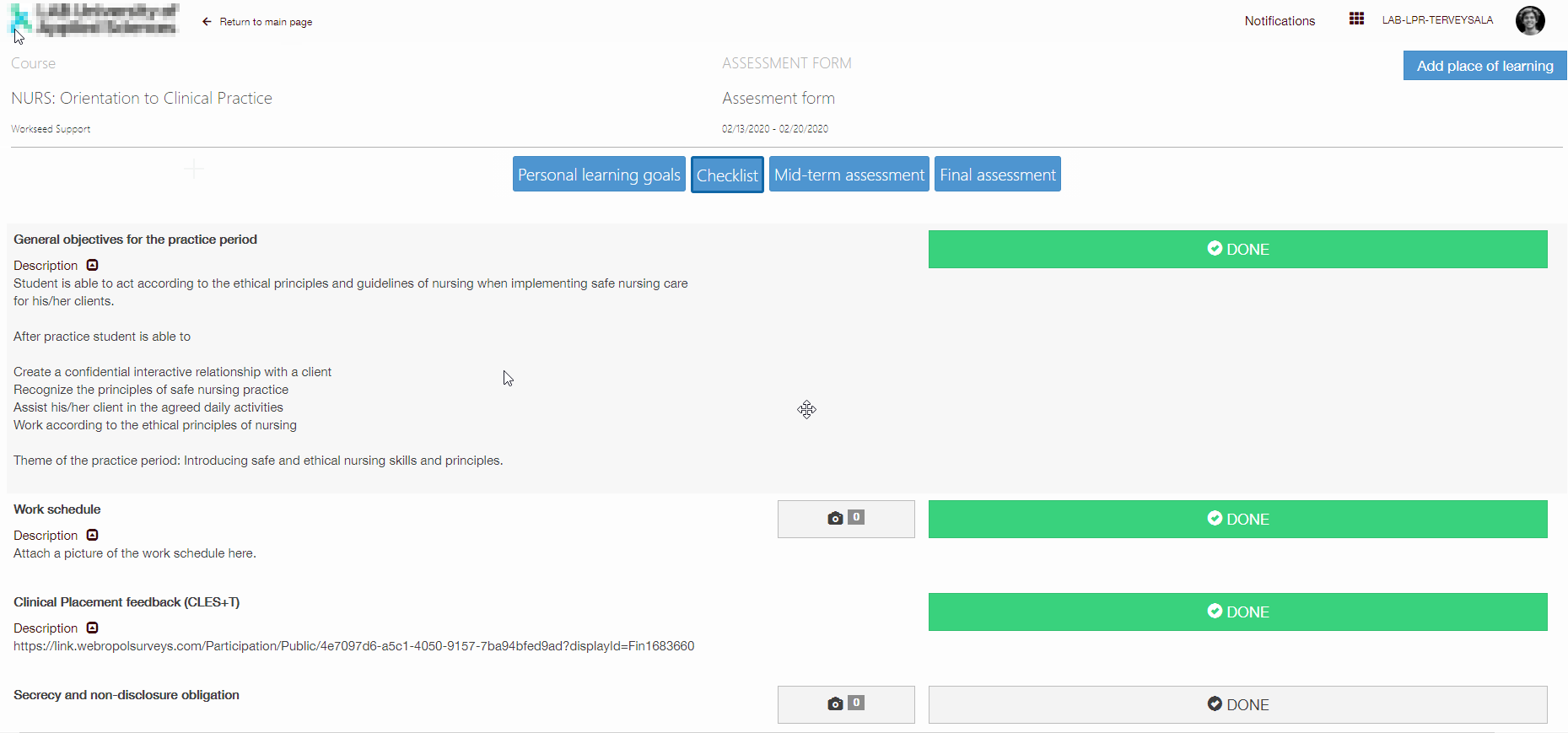
NOTE: Your teacher may have defined mandatory tasks which are shown with ! symbol. Mandatory tasks must be completed before marking the assignment as ready.
Adding document attachments
Tasks may require document attachments. The file attachment button is shown below. You may attach any type of file.

Approval of mandatory tasks
Tasks may also require a mandatory approval. Approval can be made either by your workplace instructor or teacher. The tasks requiring the mandatory approval are shown in the Report view.
The personal learning goals are typically defined by the students on their placements in training programs in the area of social and health care education.
Select Personal learning goals.

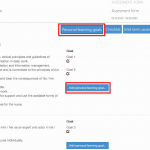
Personal learning goals are typically grouped by competence areas. Competence areas may be defined in the curriculum or may be based on prevailing regulations in the profession.
Select Add personal learning goal…
Write your goals with the means how to achieve them. Note that each of your goals is assessed individually, so the number of goals should be kept reasonable. Typically, around 15 well-structured goals are enough. When you have completed your goals, select Mark personal learning goals as done


NOTE: At this point, your workplace instructor will be notified automatically via email. Your teacher will also be notified that you have completed your personal learning goals. They can comment your goals.
The assignment may include working time reporting on a separate page. Typically, it is used for reporting work shifts during the placement. Work time reporting can be implemented in several ways. Weekly tables are often used to report planned and realized work shifts. See the detailed instructions in the view.
The following screenshot illustrates the work time reporting.


Report your working shifts at least once a week. Select the Add Row button and then Attendance Code, Shift Start time and Shift End time. Leave the extra weeks blank.
NOTE: Hour reports are official documents and are often approved by your workplace instructor. Please remind your instructor to approve your hours, preferably on weekly basis or at the latest at the end of your placement period!
The assignment may include a separate mid-term assessment page. It is typically used in extensive placement periods. Select Mid-term assessment.

Very often you need to conduct self-assessment before your workplace instructor’s assessment. Use the slider to select a grade for your progress and write down a brief reflection. Reflection is very important!

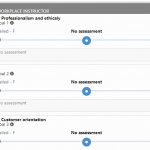
To see the assessment criteria, select i- button.
When you have completed the mid-term assessment, select Mark mid-term assessment as done

NOTE: Typically, the mid-term assessment is carried out once, but it may be required multiple mid-term assessments and a separate initial assessment.
The final assessment page can be often found from the end of the assignment. Select Final Assessment.


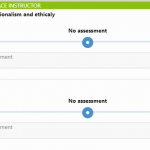
You find the final assessment section marked with a green sidebar. If you have defined personal learning goals, each of them are assessed separately. If the course consists of fixed learning or skill objectives, you find them in the section too.
Use the slider to select a grade for your progress and achievements and write down a reflection. The following screenshot illustrates typical final assessment section.

When you have finished your assignment, select Mark as done.
Done state locks the assignment so you cannot make changes any longer. Your teacher will be notified that your assignment is ready for assessment. And if you are sharing your assignment with your workplace instructor, the instructor will be notified via email to complete the final assessment.
NOTE: You can send any time a link to your workplace instructor by hitting Send report to workplace instructor.
How to cancel the marking as done
Contact your teacher. He/she can return your exercise unfinished.